Using S3 Files and Lambda to read to SQLite databases from S3
Posted: | Tags: aws s3Given a Lambda function’s ephemeral nature, when working with SQLite databases or other files, you would typically be baking it into the functions deployment package, reading the database from S3 using external libraries, or attaching the function to an Amazon EFS file system.
The first approach would mean any changes made during the runtime of the function would be lost, given that the execution of a function is ephemeral. To persist changes to the database would require you to re-deploy the function. However, this does work well for read-only use cases, and if you remain within Lambda’s space constraints. In the next approach, reading from S3 requires using additional dependencies, which you can package into the function or import through layers. There are some good libraries today that allow this, and it is a viable option. Lastly, using a function with an EFS file system mounted allows you to read and write to the SQLite database with low latency. This, however, is the costliest solution compared to the other two alternatives. If it’s a personal project, every cent counts, at least for me.
I have used the baked data approach for most of my projects, stuffing the database file into the deployment package as changes to the data aren’t frequent, and my use cases were typically read-only. However, with the recent release of S3 Files, I may reconsider how I deploy some of these small applications.
S3 Files overview
S3 Files provides a file system over an S3 bucket and natively works with EC2, Lambda and other AWS services, eliminating the need for any additional dependencies. When mounted to a Lambda function (or a supported compute service), the files are read using NFS. The service offers “high-performance storage” for metadata files and objects you’d like to read from S3 that are less than 128KiB. Any other reads come straight from the S3 bucket. The “high performance storage” is actually EFS, and S3 Files works as a neat translator between an S3 bucket and your application, determining how best to serve your files, shifting to EFS when more performant.
The S3 bucket is optimized for high throughput while the file system’s high-performance storage layer is optimized for low-latency access. S3 Files asynchronously imports data for small files (< 128 KiB by default) to the file system’s high-performance storage for low latency access on subsequent reads. Recently modified data that has not yet been synchronized to S3 is always served from the file system.
You are charged based on storage capacity and data retrieved. The rates are identical to what you’d see on the EFS filesystem and S3 bucket pricing pages. That means if you only read from S3, you would be charged with the usual storage and GET requests from the service - plus a little bit extra for metadata stored in EFS by S3 Files. If I only ever intend on reading SQLite database files from S3, using S3 Files is way cheaper than only storing those files on EFS. Do keep in mind that reads from S3 are supported for Lambda functions with 512MB or more of memory.
The components
Where this approach may fall apart is that setting up the required permissions and resources for this to work is more involved than simply including the database in the deployment package. I’ll go through my approach here, but first, some concepts used by S3 Files that are important to know.
To use S3 Files, you must first create a file system; this is a core component of the service. The file system is where you can set the scope, which is the location in S3 that you want to create the file system for. Next, a mount target is a component of the file system that is a network endpoint created in your VPC that allows compute resources, like functions, to access your files. Network-level security is provided through security groups you associate with your mount targets. The last relevant component is the access point. They are also part of the file system and provide application-level access to the directories you wish to serve. You can optionally filter users or groups’ identities and further scope down your file system to specific directories. This may be useful for dividing up a single file system across multiple applications.
For the S3 bucket you intend to use, object versioning must be enabled. When it is, remember that each time you upload a file, the previous versions of that file are still kept and charged for. Deleting the object will only create a delete marker, keeping previous versions. You must configure a Lifecycle rule to expire all noncurrent objects, thus permanently deleting them.
When it comes to the Lambda function, you will need to connect it to a VPC, ideally the same one that you used to set up your file system’s mount targets. As an aside, if you only need to access the file system from the Lambda function and are not making calls out to the public internet, you do not need a NAT Gateway. If you do require an outbound connection to the internet, consider using an IPv6 Egress-only internet gateway; they cost nothing.
An example architecture
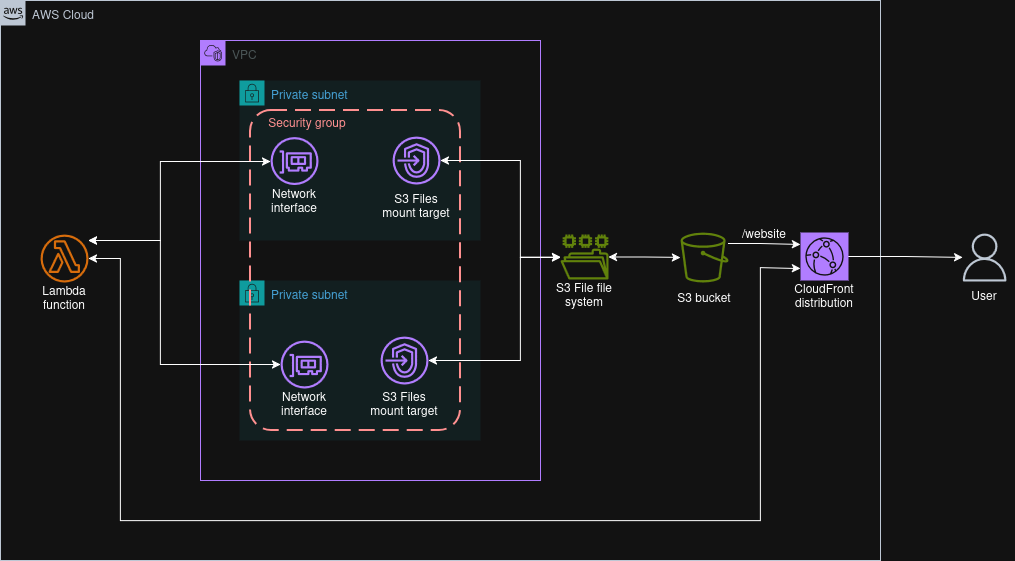
A VPC connected Lambda function accessing an S3 Files file system and serving requests to users through CloudFront.
The following example is what I created to experiment with providing search functionality on my static website. I have a SQLite database with all my entries in an S3 bucket that has versioning enabled, and a lifecycle policy to expire noncurrent versions. I’ve created an S3 Files file system that is scoped to the prefix of the database in S3. The file system has mount points in two subnets across two availability zones.

In order to process queries, I have a Lambda function that is attached to the same VPC in the same subnets as the mount points. Neither subnet has routes to the public internet, nor is there a NAT gateway or egress-only internet gateway provisioned. The function URL is enabled using IAM authentication for the CloudFront distribution serving the website from the same S3 bucket. The Lambda function uses Python configured with 512MB of memory. I initially configured the function with 128MB, and by tracking the storage used by the high-performance storage (EFS) in CloudWatch, you can see the utilisation go down when I expired the cached files1 and switched to 512MB of memory as it started reading directly from S3.
Both the file system and access point used by the Lambda function are only scoped to the databases prefix (i.e. /databases). This only allows the Lambda function to see the database files and not the website HTML files, even though they share the same bucket. While I used the same scope for the file system and the access point, I could choose to have a broader scope on the file system and then narrow it down to only the databases for the access point used by the Lambda function.
When a user sends a request, the query parameter is extracted by the function, and SQLite’s full-text search functionality is used to query the database and return the results. I have configured SQLite to create a read-only connection, which is also enforced through IAM as the Lambda function is only authorised to create read-only connections to the file system. If I choose, I can also enforce this on the access point on the file permissions level.
For network security, I have a security group set up in the VPC that allows inbound connections for other resources with the same security group within the VPC. I have this applied to both the function VPC interfaces and the file system mount targets.
Considerations
I’m still in the early stages of testing this out, and if you do decide to use this yourself, take some time to read the best practices and limitations parts of the documentation. In the end, S3 Files is dressing up an object storage solution as a file system. For example, tasks like renames and moves are expensive operations for object storage compared to a regular file system.
I might have caused it to flush the cache by adjusting the synchronisation configuration to expire data after 1 day. I’m still not sure. The storage used before was slightly higher than the size of my SQLite database, and after I saved the changes to the configuration, it dropped down by 22%. ↩︎